Dual Monitor Builds for Gaming, Work and Play
Build a sharper gaming and work desk with dual monitor builds: screen sizes, refresh rates, mounts, cables and PC performance explained for tailored use.
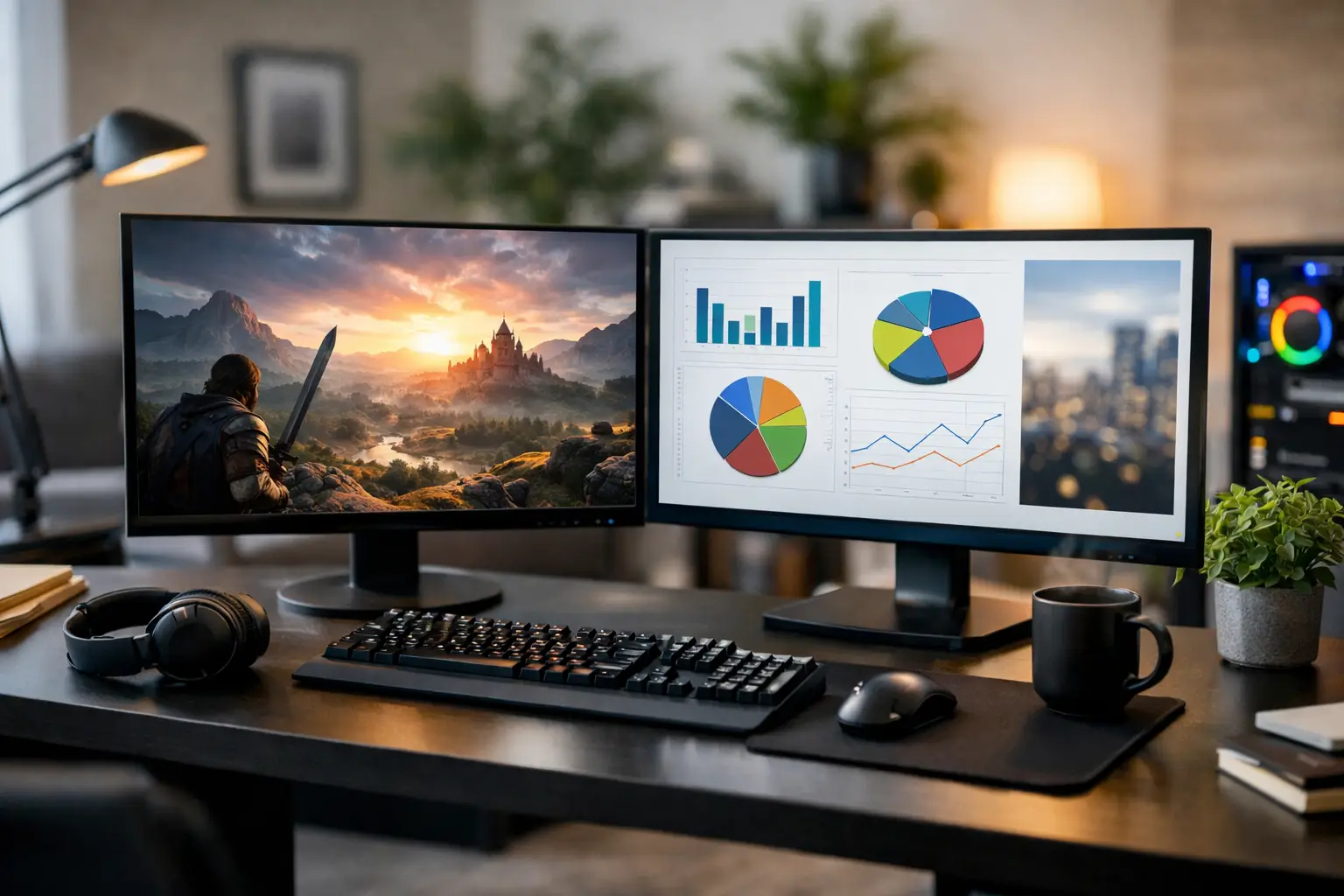
A second screen changes how a desktop feels long before it changes how it performs. The best dual monitor builds give a game, project or timeline the space it deserves, while keeping Discord, a browser, music controls or reference material visible without constant window switching. The result should feel considered, not crowded: two displays that suit your work, your games and the physical limits of your desk.
For gaming PC owners, the common mistake is buying two matching monitors because they look clean together, then discovering that the second screen adds little value. A stronger setup begins with deciding what each display needs to do. Your primary monitor handles the performance-critical task. Your secondary monitor supports it.
Planning dual monitor builds around how you use your PC
Start with the screen you will look at most. For competitive gaming, that may be a fast 24- or 27-inch 1080p or 1440p display with a high refresh rate. For immersive single-player games, a 27-inch 1440p monitor or 32-inch 4K panel may be the better centrepiece. Creators and professionals may prioritise resolution, colour coverage and workspace over extreme refresh rates.
The second monitor does not have to match every specification. It needs to complement the primary display. A 60Hz or 75Hz monitor can be perfectly capable for chat, browsing, guides, email, monitoring tools and documents, even beside a 165Hz or 240Hz gaming panel. Spending the entire budget on two premium high-refresh screens makes sense only if both will regularly display fast-moving content, such as editing, simulation, trading or multi-screen gaming.
Matching size and resolution usually creates the most comfortable visual layout. Two 27-inch 1440p monitors align neatly, offer generous desktop space and avoid obvious differences in text scaling. However, a mixed setup can be more practical. A high-refresh 27-inch main screen paired with a smaller vertical monitor can suit a gamer who also codes, studies or streams. A 4K primary display alongside a 1440p secondary screen is useful for detailed creative work, provided you are comfortable adjusting scaling in Windows.
There is no universal perfect pairing. The right choice depends on whether you value frame rate, sharpness, colour accuracy, physical desk space or a balance of all four.
Resolution, refresh rate and GPU load
Running two monitors does not normally halve gaming performance. Your graphics card concentrates its effort on the game running on the primary screen, particularly when the second display is showing relatively light content. A browser playing high-resolution video, a live stream, hardware monitoring software or multiple animated applications can add some load, though. On a system already close to its limits, that can affect frame consistency.
Resolution remains the larger consideration. A modern gaming PC driving a 1440p high-refresh main monitor needs a graphics card selected for the games and settings you actually intend to play. Adding a second 1440p display increases the desktop area and video memory use, but it is not equivalent to rendering a second demanding game at the same time.
If you want to play across both displays as one wide image, treat it as a different requirement. Bezels sit directly in the middle of the view, and the combined resolution can be demanding. For most players, two-monitor gaming is better with the game on one screen and supporting applications on the other. A single ultrawide monitor may be the cleaner choice for uninterrupted panoramic gameplay.
Choose the panel type for the job
Panel technology affects the experience as much as the headline specifications. IPS monitors are a dependable choice for most dual-screen desks because they provide strong viewing angles and pleasing colour, especially when one panel is turned vertically. They suit games, general work, editing and shared viewing.
VA panels often offer deeper contrast, which can be appealing for darker games and films. Their motion handling varies more between models, so check that a chosen display is suited to fast gaming before making it the primary screen. OLED delivers excellent contrast and fast response times, but it carries a higher cost and requires sensible care where static desktop elements are displayed for long periods.
For colour-sensitive photography, video or design work, look beyond terms such as “wide gamut”. Consider calibration support, stated colour coverage and whether the display is intended for accurate creative use. A vivid monitor is not automatically an accurate one. If your primary concern is gaming, a well-balanced IPS panel with an appropriate refresh rate is often the more versatile investment.
Make the desk work before adding more hardware
Two displays can make a modest desk feel more efficient, or make a premium setup feel cramped. Measure the usable width and depth before choosing screen sizes. Monitor stands take up more room than many buyers expect, especially when both screens need to angle inward. If the desk is shallow, large panels can force you to sit too close, making the outer edges uncomfortable to view.
Monitor arms are often the most effective upgrade in dual monitor builds. A suitable dual arm frees desk space, makes height adjustment easier and allows the displays to sit close together with their bezels aligned. Check the VESA mounting standard, weight rating and maximum supported screen size before ordering. Curved or ultrawide monitors may need an arm with a higher weight capacity than their dimensions suggest.
Position the primary monitor directly in front of you, with the top of the screen around eye level or slightly below. The secondary monitor should sit close beside it and angle towards you rather than remaining flat against the wall. If both displays are used equally for work, arrange them symmetrically with the join centred. For gaming first, keep the faster screen centred and place the companion display to one side.
A vertical secondary monitor is especially useful for long documents, chat feeds, code, music libraries and web pages. It is less useful for video playback and most game guides, so choose portrait orientation because it supports your real habits, not simply because it looks impressive in a desk photograph.
Connections and configuration deserve attention
A well-specified PC still needs the right ports and cables. Check the outputs on the graphics card, not only the connectors on the motherboard. Dedicated graphics cards commonly provide DisplayPort and HDMI outputs, while many high-refresh monitors achieve their full refresh rate most reliably through DisplayPort. The monitor manual will confirm which port supports its maximum resolution and refresh setting.
Use properly rated cables of an appropriate length. Avoid stretching them tightly around monitor arms, as movement can strain the connector over time. Route power and display cables separately where possible, leaving enough slack for screen adjustment. Clean cable management is not just cosmetic - it makes future upgrades, cleaning and troubleshooting much easier.
Once connected, open the Windows display settings and arrange the screens to match their physical positions. Set the intended primary display, then confirm each monitor’s native resolution and refresh rate. High-refresh panels can occasionally default to 60Hz until this is changed manually. In the graphics driver software, check adaptive sync settings if your monitor supports FreeSync or G-Sync Compatible operation.
Pay attention to text scaling too. Mixed-resolution dual monitor builds can make windows appear differently sized as you move them between screens. Windows handles this well in most cases, but matching pixel density reduces the compromise. A 27-inch 1440p pair is popular partly because it keeps text, icons and window behaviour consistent.
Build the PC around the complete setup
The monitor should influence the PC specification, particularly the graphics card. A system intended for 1080p esports can focus on extremely high frame rates, while a 1440p or 4K primary monitor places greater demand on the GPU. Do not pay for a flagship display if the chosen system cannot drive the games you play at settings you will enjoy.
Processor, memory and storage still matter. Streaming, editing, compiling and multitasking across two screens can benefit from a capable multi-core CPU, sufficient RAM and fast NVMe storage. But gaming performance remains led largely by the graphics card and the resolution of the main display. A balanced configuration is more valuable than placing all the budget into one standout component.
When selecting a custom PC, explain the monitor pairing and the games or applications you use most. That gives the builder a clear performance target. CraftCore systems are expertly handcrafted and fully tested around individual requirements, which helps ensure the hardware choice supports the whole desk rather than only the PC case.
Before finalising a purchase, check four practical details: available GPU outputs, monitor VESA compatibility, desk dimensions and the cable types included with each display. These small checks prevent the most frustrating setup-day surprises.
A good dual-screen desk should make your time at the PC calmer and more capable. Choose a primary monitor that earns its place in front of you, then add a second display with a clear purpose. That approach produces a setup you will still appreciate long after the first power-on.