A Guide to Choosing Refresh Rates for Gaming
Our guide to choosing refresh rates explains 60Hz, 144Hz, 240Hz and beyond, so you can match your monitor to your PC, games and budget with confidence.
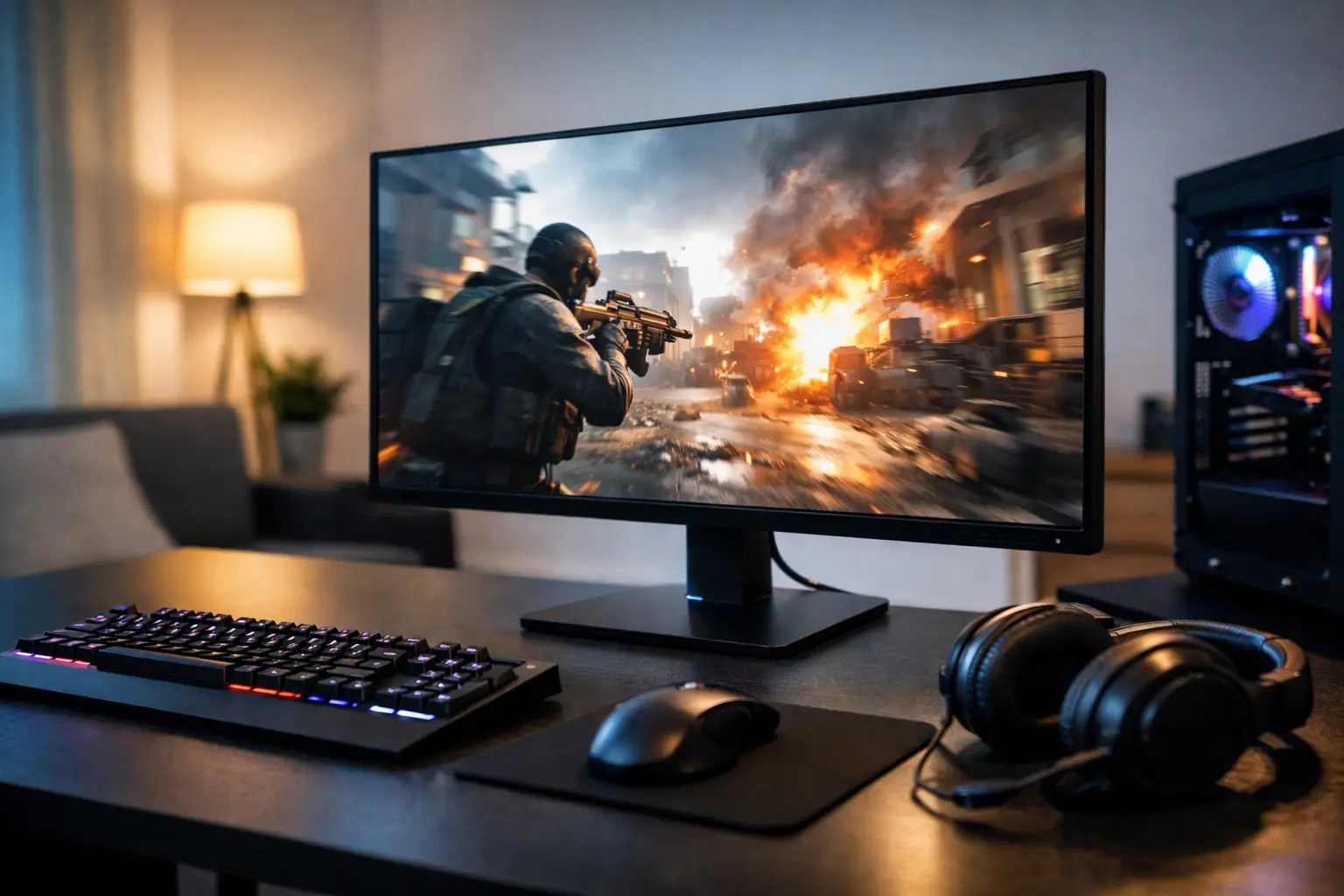
A monitor can only show the frames it is given. Pairing a powerful gaming PC with a 60Hz display may leave much of that performance unseen, while buying a 360Hz monitor for games your system runs at 90fps is unlikely to be money well spent. This guide to choosing refresh rates helps you make the match properly, based on the games you play, the hardware you own and the experience you expect.
What refresh rate means in practice
A monitor's refresh rate, measured in hertz (Hz), is the number of times it can update its image each second. A 60Hz monitor refreshes up to 60 times per second. A 144Hz model refreshes up to 144 times, and a 240Hz model up to 240 times.
Higher refresh rates can make movement appear clearer and more immediate. Fast camera pans are easier to follow, mouse movement feels more connected, and rapid action is less likely to look blurred. The difference is especially noticeable when moving from 60Hz to 120Hz or 144Hz. The gains above 144Hz remain real, but are more specialised and tend to matter most in highly competitive games.
Refresh rate is not the same as frame rate. Your graphics card produces frames per second, usually shown as fps. Your monitor displays frames according to its refresh rate. To benefit fully from a 144Hz monitor, your PC needs to deliver close to 144fps in the games and settings you use. It does not have to hit that figure without exception, but sustained performance is what makes a high-refresh display feel worthwhile.
A guide to choosing refresh rates by how you play
The right figure is rarely about buying the highest number available. It is about choosing a display that suits your typical workload.
60Hz to 75Hz: everyday desktop use and lighter gaming
A 60Hz or 75Hz monitor remains perfectly usable for office work, browsing, media playback and slower-paced games. Strategy titles, turn-based games, visual novels and cinematic single-player experiences do not demand exceptionally high frame rates to remain enjoyable.
For a premium gaming PC, though, 60Hz is often a limiting choice. Modern systems can deliver far more than 60fps in many titles, particularly at 1080p. If gaming is a key reason for your purchase, moving to at least 120Hz or 144Hz will usually provide a more fitting experience.
120Hz to 180Hz: the strongest all-round choice
For most PC gamers, 144Hz is the practical sweet spot. It offers a substantial improvement over 60Hz while remaining achievable for a wide range of graphics cards at sensible settings. It is well suited to games such as Fortnite, Call of Duty, Apex Legends, Rocket League, racing games and fast-paced action titles.
Displays at 165Hz, 170Hz and 180Hz sit in the same broad category. They provide a modest additional benefit, but should be judged on the panel quality, resolution, response time and price rather than the headline number alone. A well-built 144Hz monitor with a good IPS panel may be a better purchase than a cheaper 180Hz alternative with weaker motion handling or poor contrast.
For buyers who want one system for gaming, work and general use, a 1440p 144Hz to 180Hz monitor is often an excellent balance. It provides sharp desktop space, smooth gaming and a level of performance that a carefully specified custom PC can realistically maintain.
240Hz: for serious competitive play
A 240Hz display refreshes every 4.17 milliseconds, compared with 6.94 milliseconds on a 144Hz display. That reduction can improve motion clarity and reduce the time between a new frame being rendered and appearing on screen. For competitive players, these small margins can matter.
The trade-off is performance demand. To make a 240Hz monitor worthwhile, you ideally want frame rates approaching 240fps in the games you play. This is most realistic in esports titles such as Counter-Strike 2, Valorant, Overwatch 2 and Rainbow Six Siege, often at 1080p with competitive graphics settings.
A 240Hz display is not automatically the right choice for every enthusiast. If your favourite games are graphically demanding single-player releases, a 1440p 165Hz monitor may offer a more satisfying combination of image quality and fluidity than 1080p at 240Hz.
360Hz and beyond: focused performance, narrower value
360Hz, 500Hz and higher refresh-rate monitors are designed for players chasing every competitive advantage. At this level, the difference from 240Hz is more subtle than the jump from 60Hz to 144Hz. It can be valuable for experienced players with fast reactions, but it is not a universal upgrade.
These displays also place strict demands on the rest of the setup. You need a CPU capable of feeding high frame rates, a suitable graphics card, fast memory and game settings configured for performance. For most players, budget spent on a stronger GPU, a better-quality 1440p panel or a more balanced full system will have a greater overall impact.
Match refresh rate to resolution and graphics performance
Resolution and refresh rate should be chosen together. Raising either one increases the work required from your graphics card. A move from 1080p to 1440p adds considerably more pixels, while moving from 144Hz to 240Hz asks the PC to produce many more frames each second.
At 1080p, 144Hz and 240Hz are realistic targets for mid-range and high-performance gaming PCs, depending on the game. This resolution remains a sensible option for competitive players who prioritise very high frame rates over extra detail.
At 1440p, 144Hz to 180Hz is a highly capable target for premium gaming builds. The image is sharper than 1080p, and the refresh rate remains fast enough for responsive multiplayer gaming. A stronger graphics card will help you retain higher settings in demanding new releases.
At 4K, image detail takes priority and frame rates are harder to sustain. A 4K 120Hz, 144Hz or 165Hz monitor can be an outstanding choice for high-end systems, but it is sensible to expect some adjustment of graphics settings in the most demanding games. Features such as upscaling and frame generation can help, although their usefulness depends on the game, the graphics card and your preference for image quality and responsiveness.
Do not spec a PC around an ideal benchmark result alone. Consider the games you actually play, whether you favour ultra settings, and how long you expect the system to remain at the same performance level. A tailored build should leave room for the way you use it, not just for a single test scene.
Refresh rate is only part of motion quality
Two monitors with the same 144Hz rating can look and feel noticeably different. Response time is a major factor. It describes how quickly pixels change from one colour or shade to another. Slow pixel transitions can create ghosting, where a faint trail follows moving objects, reducing the clarity that a higher refresh rate is meant to provide.
Panel technology also affects the result. IPS panels are popular for their strong colour reproduction and viewing angles, making them versatile for gaming, creative work and everyday use. VA panels often deliver deeper contrast, which can suit darker games and media, though motion performance varies between models. OLED panels offer exceptional contrast and very fast pixel response, but buyers should consider price, brightness behaviour and appropriate care for static desktop elements.
Variable refresh rate support is another worthwhile feature. Technologies commonly referred to as Adaptive-Sync, FreeSync or G-Sync Compatible allow the monitor to vary its refresh rate in line with the PC's frame rate. When performance changes during a game, this can reduce screen tearing and make motion appear smoother. It is particularly useful when your frame rate is often below the monitor's maximum refresh rate.
Check the connection before you buy
Your monitor, graphics card and cable must all support the resolution and refresh rate you intend to use. DisplayPort is generally the straightforward choice for high-refresh PC gaming, while HDMI capabilities vary by version and device. A cable supplied with a monitor may be suitable, but it is worth checking rather than assuming.
Once connected, make sure Windows is actually set to the maximum available refresh rate. Many displays default to 60Hz until changed in the display settings. In games, select the correct refresh rate and use fullscreen settings where appropriate. If you have bought a 165Hz monitor but it is running at 60Hz, the upgrade will not be visible.
It is also worth distinguishing refresh rate from response settings such as overdrive. Aggressive overdrive modes can sometimes introduce inverse ghosting or bright trails. The best setting is usually the one that gives clean movement across a range of frame rates, rather than the most extreme option in the menu.
Choose for the experience you want to keep
A monitor often stays on the desk through several PC upgrades, so it deserves the same considered approach as your core components. A competitive player may be best served by 1080p at 240Hz. A player who values detailed worlds and versatile desktop space may prefer 1440p at 165Hz. For a high-end system built around visual fidelity, 4K at 144Hz can be a compelling long-term choice.
The best refresh rate is the one your PC can use consistently and your games genuinely benefit from. Choose a quality display with the right balance of resolution, motion handling and adaptive refresh support, then build the system around the performance you want to see every time you sit down to play.