How to Choose PC Storage for a Gaming PC
Learn how to choose PC storage for gaming, work and creative projects. Compare SSDs, HDDs, capacity, speed and upgrade options with confidence. clearly.
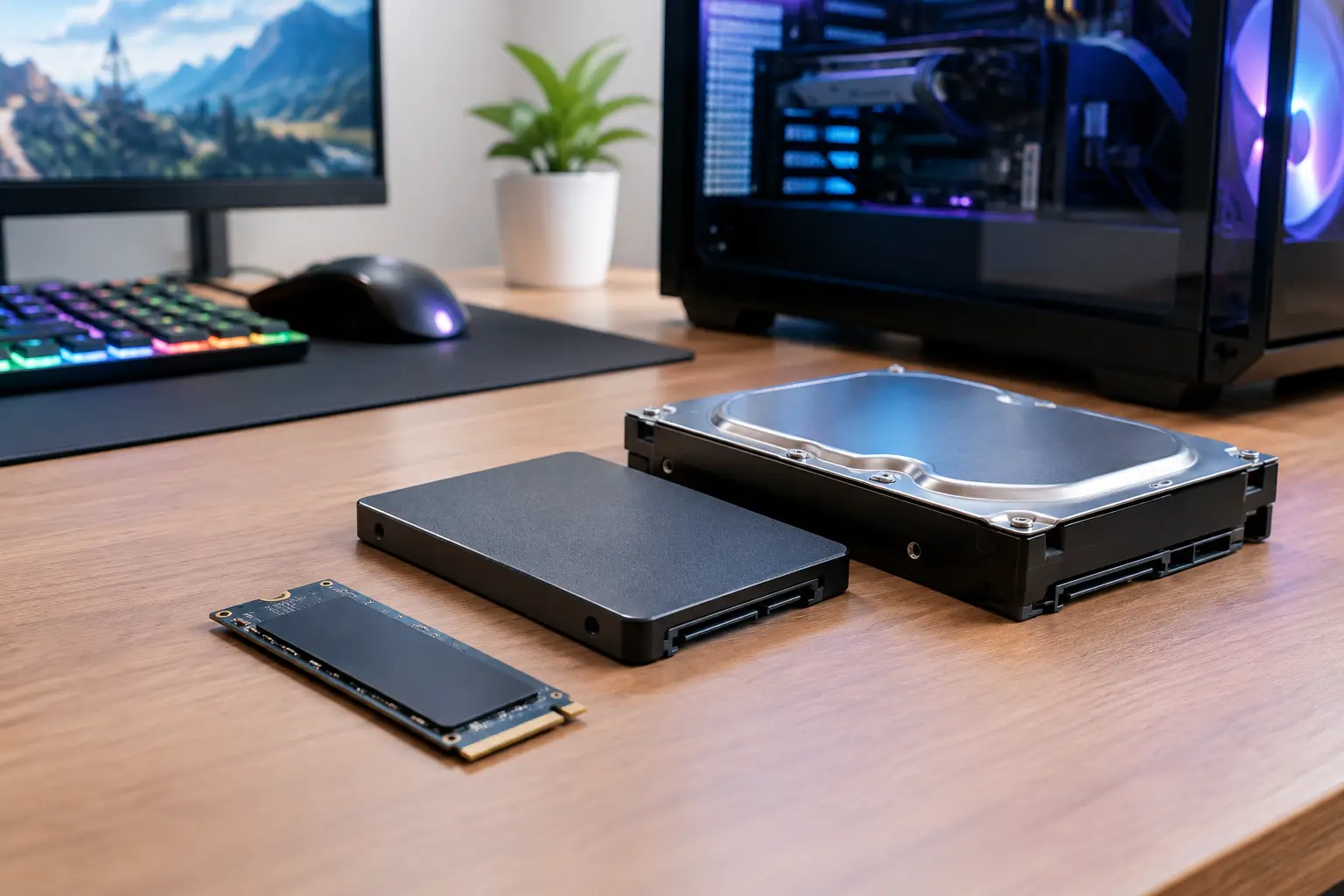
A new game can now occupy more space than an entire PC did a few years ago. Add Windows, launchers, project files, clips and mods, and a drive that looked generous on paper can become restrictive surprisingly quickly. Knowing how to choose PC storage means balancing capacity, speed, budget and room to expand - not simply buying the largest number on the box.
For most premium gaming and performance builds, an NVMe SSD should be the foundation. The right final configuration, however, depends on what you play, how you work and whether you want the system to stay comfortable to use after several years of updates and new installs.
How to Choose PC Storage Around Your Real Usage
Start with the files you need to keep installed, rather than the total size of your existing drive. Modern AAA games commonly use 80GB to 150GB each, and some exceed that once high-resolution texture packs and updates are included. Windows, core software and temporary files also need space to work properly.
A 1TB SSD is a sensible entry point for a focused gaming PC. After formatting and the operating system, it still leaves room for a carefully chosen game library. It is best suited to players who are happy to uninstall titles they have finished or move older games elsewhere.
For most new custom builds, 2TB is the more balanced choice. It gives a gaming PC enough breathing room for a varied library, everyday applications and future updates without requiring constant storage management. It is also a particularly sensible option when the PC will be shared, as separate user profiles and media soon add up.
Choose 4TB or more when your storage needs are known to be heavier. This applies to creators working with high-bitrate video, photographers retaining large RAW catalogues, professionals using sizeable local project folders and gamers who keep an extensive library installed. Extra capacity is worthwhile when it protects your workflow, not simply because it is available.
Leave Free Space for Consistent Performance
Do not plan to fill an SSD to its absolute limit. Keeping roughly 10 to 20 per cent free helps Windows manage updates and allows the drive to maintain its performance more consistently. A full system drive can create frustrating problems long before it technically runs out of capacity, from failed updates to slow file operations.
This is one reason a 2TB drive often feels much better long term than a 1TB drive, even for someone whose initial library fits comfortably on 1TB. Storage requirements rarely stand still.
SSD or HDD: Which Type of PC Storage Fits?
An SSD has no moving parts, which makes it dramatically faster than a traditional hard disk drive. It improves Windows start-up, game loading, file transfers and the general responsiveness of the PC. For a gaming or high-performance desktop, the operating system should always be installed on an SSD.
There are two main SSD formats to consider. A 2.5-inch SATA SSD connects by cable and is still a capable option for additional storage. An M.2 NVMe SSD fits directly onto the motherboard and uses the PCIe connection, offering much higher potential transfer speeds in a compact form factor. Most modern performance builds use M.2 NVMe drives as their primary storage.
Hard drives still have a place, but a more specific one. Their lower cost per terabyte makes them useful for large archives, recorded footage, backups and files that do not need fast access. They are not the best choice for a primary gaming drive: loading times are longer, they are mechanical and they add audible noise to the system.
A practical arrangement for a higher-capacity machine can be a 2TB NVMe SSD for Windows, games and active work, paired with a larger HDD or secondary SSD for archived media. If quiet operation, compact cable management and fast everyday access matter most, a second SSD is usually the more premium solution.
Do You Need the Fastest NVMe Drive?
Not always. NVMe drives are commonly described by PCIe generation, such as Gen 3, Gen 4 and Gen 5. A newer generation can offer higher benchmark speeds, but the real-world difference varies significantly by task.
A quality Gen 4 NVMe SSD is an excellent fit for the majority of gaming PCs. Games load quickly, the system remains responsive and the drive represents strong value. Moving to Gen 5 may make sense for demanding professional workloads involving very large files, frequent high-speed transfers or specialist production software. For ordinary gaming, the price difference is often better spent on GPU performance, CPU choice or additional capacity.
Compatibility also matters. The motherboard determines how many M.2 slots are available and which PCIe generations they support. A Gen 5 drive can work in a lower-generation slot, but it will operate at the speed supported by that slot. Some high-performance drives also benefit from a heatsink, especially in sustained workloads, so physical clearance and motherboard cooling should be considered.
The useful rule is simple: buy a dependable drive with the capacity you need first, then pay for additional speed where your workload can genuinely use it.
Plan Storage as Part of the Whole Build
Storage should not be chosen in isolation. Check how many M.2 slots your chosen motherboard provides, whether installing multiple drives affects other connections and how easily the case supports 2.5-inch SSDs or 3.5-inch HDDs. These details matter more when you intend to add drives later.
An upgrade path is valuable, but it should not become an excuse to under-specify the first drive. Adding storage after purchase is straightforward in many desktop PCs, yet moving Windows and reorganising a full game library takes time. Starting with enough fast primary storage makes day-to-day ownership simpler.
Consider where files belong, too. The operating system, favourite games and active creative projects should live on the fastest drive. Less frequently accessed games, completed projects and backup copies can sit on secondary storage. This approach gives you performance where you notice it while keeping the build cost proportionate.
Reliability, Warranty and Backups
No drive should be treated as the only copy of important work. SSDs are reliable and increasingly durable, but any storage device can fail, be damaged or be affected by accidental deletion. Keep essential documents, photos and project files in at least one separate backup location.
When comparing SSDs, look beyond the headline read speed. A reputable controller, suitable endurance rating, warranty length and dependable thermal behaviour are all part of a quality drive. For a premium custom PC, the aim is storage that performs consistently under real use, not a specification chosen solely for a benchmark figure.
Recommended Starting Points
For a straightforward gaming build, choose a 1TB NVMe SSD if the budget is tightly controlled and you keep a selective library. For a balanced gaming PC, a 2TB Gen 4 NVMe SSD is the strongest all-round recommendation. For gaming alongside editing, streaming or professional work, begin with 2TB to 4TB of NVMe storage and add a secondary drive if your archive is substantial.
If you are uncertain between a faster 1TB drive and a quality 2TB drive, capacity will usually make the bigger difference to daily enjoyment. You will notice the convenience every time you install a new title, export a project or download a major update.
A thoughtfully specified storage setup lets the rest of a handcrafted PC perform without compromise. Choose for the files and games you will have in a year, not only the ones currently on your desktop.