How to Reduce Input Lag on Your Gaming PC Today
Learn how to reduce input lag on a gaming PC, from display settings and frame rates to peripherals, drivers and a fully balanced system build at home.
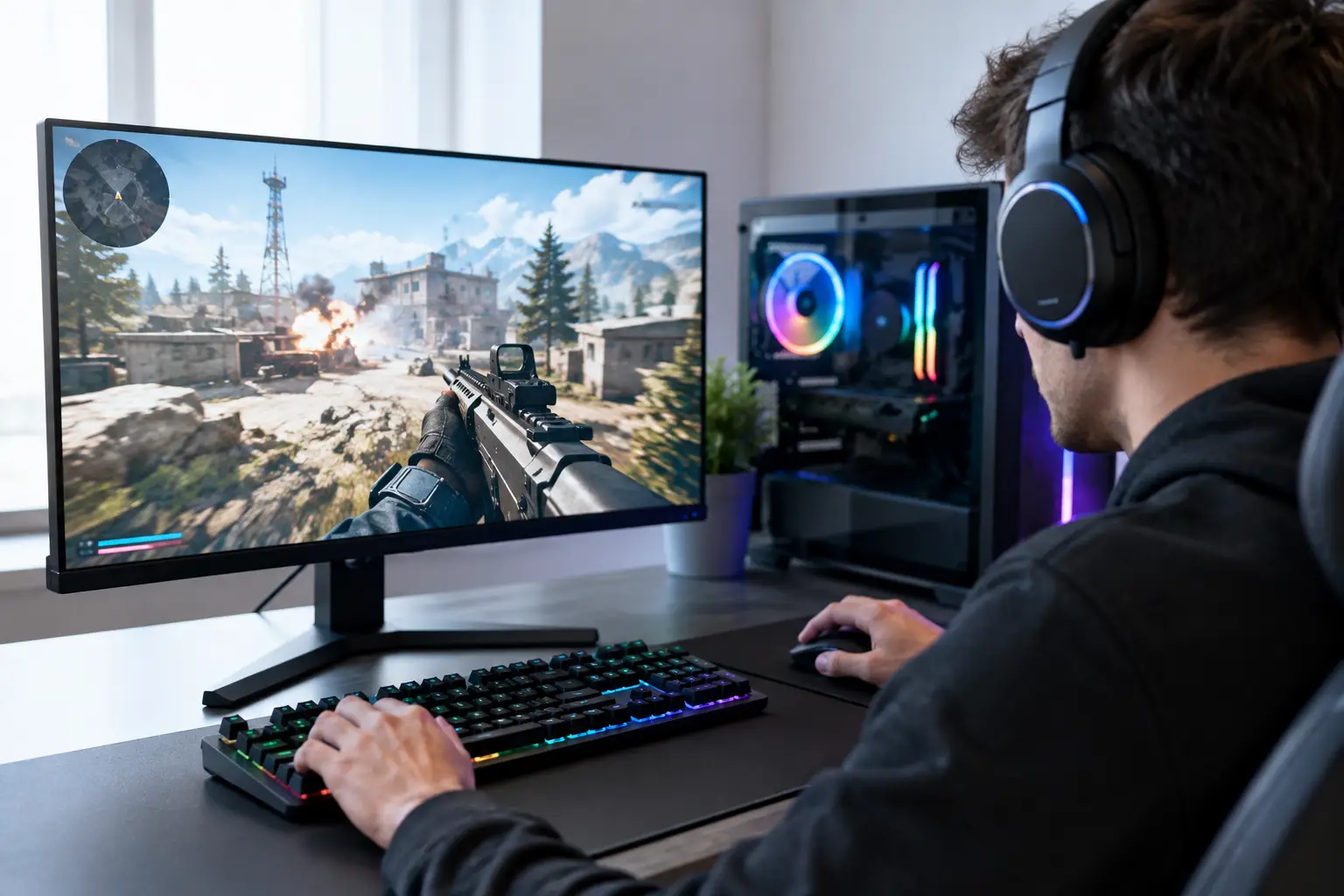
A game can be running at a high frame rate and still feel slightly behind your hands. That delay between pressing a key, moving a mouse or pulling a trigger and seeing the result on screen is input lag. Learning how to reduce input lag is less about one magic setting and more about making your display, PC, game and peripherals work at the right pace.
For competitive shooters, racing games and fighting games, small improvements can make aiming feel more connected and movement more predictable. For single-player games, lower latency still improves the sense that a premium PC is responding exactly as it should.
What input lag actually means
Input lag is the total time taken for your action to appear on screen. It can build up at several points: the mouse, keyboard or controller must send its signal; the game engine processes it; the CPU and graphics card prepare a frame; and the monitor displays that frame.
This is different from internet ping. Ping affects the connection between your PC and an online game server. A high ping can make opponents appear to move unpredictably, but it is not the same issue as the delay you feel between moving your mouse and seeing your crosshair respond. You may need to address both, but they require different fixes.
The goal is not necessarily the highest possible frame rate or the most expensive peripheral. It is a well-balanced system where no single setting or component adds avoidable delay.
Start with the display
Your monitor is often the most noticeable part of the input-lag chain. A 60Hz display refreshes the image 60 times per second, while a 144Hz or 165Hz gaming monitor refreshes it far more frequently. That does not make a player better overnight, but it can make motion clearer and actions feel more immediate.
First, check that Windows is actually using your monitor's maximum refresh rate. A high-refresh display connected with the wrong cable, or left at 60Hz in settings, will not deliver the experience you paid for. Use a suitable DisplayPort or HDMI connection for your monitor and graphics card, then confirm the refresh rate in Windows display settings.
Many monitors also have their own on-screen menu. Look for a low-latency mode, sometimes labelled as Game Mode, Instant Mode or Low Input Lag. Names vary by manufacturer. These modes typically bypass extra image processing that is useful for film viewing but unnecessary for gaming.
Be selective with monitor features. Excessive sharpening, dynamic contrast, noise reduction and motion interpolation can add processing time or make the image less natural. A responsive gaming setup usually benefits from a clean signal path rather than every enhancement switched on.
Use variable refresh rate correctly
Adaptive Sync, FreeSync and G-Sync Compatible technologies help the monitor match its refresh cycle to the graphics card's output. This reduces tearing and can make frame-rate changes look smoother.
Variable refresh rate is usually a good choice, particularly when your frame rate moves below the monitor's maximum refresh rate. For the best balance of responsiveness and smoothness, keep it enabled and set a sensible frame-rate limit just below the monitor's maximum refresh rate. On a 144Hz screen, for example, a cap around 140fps can prevent the system from repeatedly hitting the ceiling.
Optimise frame rate without chasing unrealistic numbers
High and stable frame rates are central to how to reduce input lag. Each frame takes time to render. At 60fps, a frame is produced every 16.7 milliseconds; at 120fps, that falls to 8.3 milliseconds. Faster frame delivery generally means the game can show a more recent input sooner.
However, an unstable 250fps that causes severe frame-time spikes is not automatically better than a consistent 144fps. Smooth frame pacing matters. If your GPU is constantly at 99 to 100 per cent utilisation, input response can worsen because new frames and input updates are waiting in a busy rendering queue.
Lower the settings that place the heaviest load on the graphics card first. Ray tracing, high shadow quality, extreme view distance, volumetric effects and demanding anti-aliasing options often have a greater performance cost than texture quality. Texture settings are usually constrained more by VRAM, so they can often remain high if your graphics card has enough memory.
A frame-rate cap can be useful where uncapped performance pushes the GPU flat out. Test a cap that keeps frame times steady and leaves a little graphics headroom. The best setting depends on the game, monitor and hardware, so use the result you can feel and measure rather than a universal number.
Choose the right sync and latency settings
Traditional V-Sync prevents screen tearing by synchronising frame presentation with the monitor refresh cycle. The trade-off is that it can introduce additional input lag, especially when the system cannot sustain the target frame rate.
If you play competitive games, disabling in-game V-Sync is often the most responsive option, although you may see tearing. If tearing is distracting, variable refresh rate combined with a frame-rate limit just below the monitor maximum is generally the more balanced route.
Modern games and graphics drivers may offer low-latency technologies such as NVIDIA Reflex or AMD Anti-Lag. When available, these features reduce the queue of frames waiting to be rendered, helping the CPU and GPU respond more directly to current input. Enable them in supported games, then test the setting rather than assuming every mode is equally beneficial. Some games offer a boosted option that may increase power use and heat for a marginal latency gain.
Avoid stacking competing controls without a reason. A game-level limiter, driver-level limiter, V-Sync setting and third-party overlay can all influence frame delivery. Start with the game settings, make one change at a time and assess the result.
Keep the PC ready for the game
A powerful graphics card cannot compensate for a CPU bottleneck, limited memory or unnecessary background activity. If the processor is overloaded, the game may struggle to process inputs and prepare frames quickly, even when the GPU is underused.
Close browsers with numerous tabs, launchers, RGB utilities and recording applications you do not need while playing. Overlays from chat clients, game launchers and performance tools are useful, but too many can consume resources or introduce occasional stutters. Keep the tools that genuinely improve your experience and remove the rest from the test.
Use a current graphics driver, but do not treat every new version as compulsory on release day. Stable, fully tested drivers are preferable to chasing an update that offers no benefit for the games you play. Windows updates and motherboard chipset drivers also matter, particularly on a newly built system.
Check temperatures during longer gaming sessions. When a CPU or graphics card runs too hot, it may reduce clock speeds to protect itself. This can cause inconsistent frame times and a sluggish feel that only appears after half an hour of play. Good case airflow, correctly fitted cooling and sensible fan curves protect sustained performance without turning the desktop into a distraction.
Do not overlook the mouse, keyboard and controller
A wired mouse or keyboard remains the straightforward choice for predictable latency, but quality wireless gaming peripherals can also be highly responsive when used correctly. Connect the receiver directly to the PC or use its supplied extension lead to position it closer to your desk, away from potential interference.
Set your mouse polling rate to a level your system handles comfortably. Higher polling rates can reduce the time between reports, but the improvement is not always dramatic and very high settings can place extra demand on the CPU in some games. For most players, 1,000Hz is an excellent baseline. Test higher rates if your hardware and preferred games remain stable.
For controllers, use a wired connection when troubleshooting. Bluetooth performance can vary with adapter quality, wireless interference and battery level. If a controller feels inconsistent, updating its firmware and trying a direct USB connection are sensible first checks.
Build around balance, not headline specifications
The most effective way to reduce input lag is to plan the whole system around the resolution and refresh rate you intend to use. A 240Hz esports monitor needs a PC capable of delivering very high, consistent frame rates in the games you play. A 4K display prioritises image detail but puts far greater demand on the graphics card, which may require different settings and expectations.
This is where a tailored PC specification has real value. Matching the processor, graphics card, memory, cooling and power delivery to your actual games avoids spending heavily on one component while another becomes the limiting factor. An expertly handcrafted, fully tested system should feel dependable not only on its first boot, but during demanding sessions months later.
Before changing everything at once, test one game in a familiar area, note the frame rate and how the controls feel, then make a single adjustment. Input lag is often reduced through a series of small, considered improvements - and the right balance will make your PC feel faster every time you sit down to play.