How to Optimise Windows Gaming Performance
Learn how to optimise Windows gaming performance with practical settings that protect frame times, reduce distractions and keep your PC running at its best.
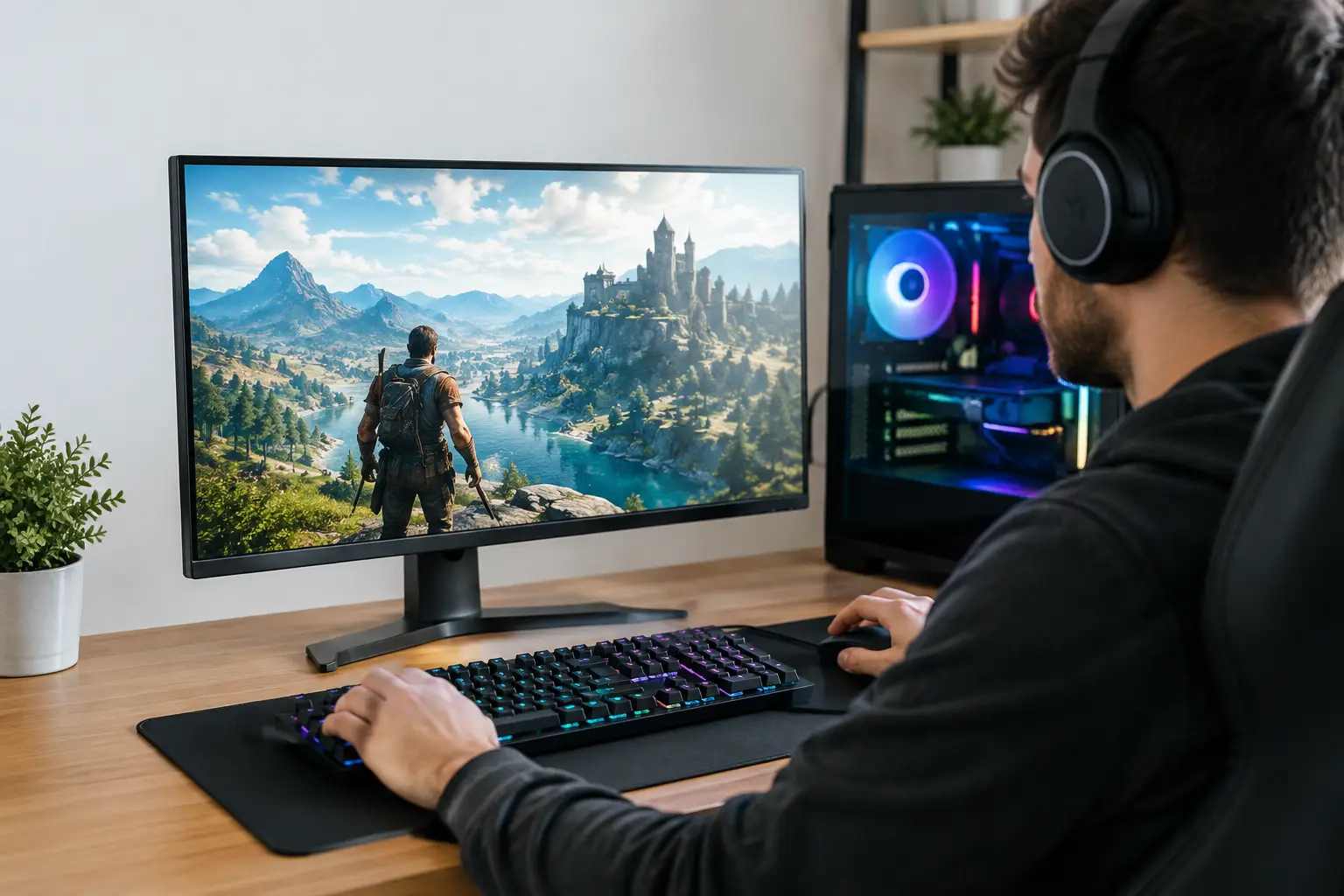
A powerful graphics card can still feel underwhelming when Windows is busy downloading updates, launching background apps or using the wrong display mode. To optimise Windows gaming properly, focus on consistency as well as headline frame rates. A system that holds stable frame times will feel more responsive than one that produces a higher average FPS with frequent stutters.
The right settings depend on your hardware, monitor and the games you play. There is no value in disabling useful security features or applying registry tweaks you cannot reverse. Start with the changes that have a measurable effect, then test one adjustment at a time.
Optimise Windows Gaming Before You Launch a Game
Windows 11 and Windows 10 include several gaming-focused controls, but they work best when the rest of the PC is in good order. Begin by installing current Windows updates, then restart the machine. Updates can include stability fixes, scheduling improvements and support for newer hardware, but it is sensible to install them outside a gaming session rather than allowing a pending restart to interrupt one.
Next, install the latest stable graphics driver for your NVIDIA, AMD or Intel GPU. Driver updates regularly improve performance in new releases and fix game-specific issues. Do not assume every new driver will transform an older title, however. If a game is already stable and performing well, a clean, considered update schedule is often better than changing drivers before every session.
Set Windows to use the correct graphics processor for demanding games. In Settings, open System, Display, Graphics and add the game executable if it is not already listed. Choose High performance to make sure a laptop or multi-GPU system uses its dedicated graphics hardware. Desktop gaming PCs with one graphics card generally need no change here, but it is worth checking if performance is unexpectedly poor.
Use Game Mode, but keep expectations realistic
Game Mode is designed to reduce interruptions and prioritise system resources for your game. Enable it in Settings under Gaming. It is a sensible default for most players, particularly on systems where other applications are often open.
Game Mode cannot compensate for insufficient hardware, an overheating processor or a game installed on a failing drive. Think of it as sensible housekeeping rather than a replacement for a balanced PC specification.
Control Background Work and Overlays
Background software is one of the most common causes of inconsistent gaming performance. It is not only processor use that matters. Overlays, RGB utilities, browser tabs, cloud synchronisation and recording applications can all consume memory, introduce notifications or create short spikes in system activity.
Open Task Manager before a gaming session and look at the Processes tab. Close applications you do not need, particularly browsers with many active tabs, launchers you are not using and file-syncing tools. Avoid ending unfamiliar Windows processes simply because they are using a small amount of memory. Removing a necessary service is more likely to create a problem than a performance gain.
Review the Startup apps section in Task Manager too. Disable non-essential applications that launch automatically, then restart and assess the difference. Keep security software, audio drivers and hardware control software enabled where they are required for normal operation.
Overlays deserve individual attention. Discord, Steam, GeForce Experience, AMD Software, Xbox Game Bar and monitoring tools can be useful, but running several at once is unnecessary. If you experience hitching, test the game with overlays disabled one by one. Xbox Game Bar can remain enabled if you use its capture or social features, yet turning off background recording is often worthwhile when you do not.
Choose Display and Graphics Settings That Match Your PC
A game running at the wrong refresh rate will not feel like it should, regardless of its FPS counter. In Windows Settings, check System, Display, Advanced display and select your monitor's highest supported refresh rate. Then check the game's own display settings, as some titles default to 60Hz or use a separate refresh-rate option.
Use the correct cable and port for your display. Higher refresh rates, HDR and variable refresh rate support can be limited by an older HDMI cable, an unsuitable port or the wrong monitor input setting. This is particularly relevant when upgrading from a standard 60Hz display to a high-refresh gaming monitor.
Variable refresh rate technologies, such as G-SYNC Compatible and FreeSync, can make frame-rate fluctuations less distracting. Enable the feature in your monitor menu and GPU control panel where supported. It is most valuable when your FPS moves below the monitor's maximum refresh rate. If you are consistently far below that range, the answer is likely to be lower game settings or stronger hardware rather than a display setting.
For graphics quality, resist the temptation to set every option to Ultra. Ultra presets can place a heavy load on the GPU for changes that are difficult to notice while playing. Start with a High preset and adjust the most demanding options: ray tracing, shadows, volumetric effects, reflections and resolution scaling. Texture quality is often less costly if your graphics card has sufficient VRAM, while ray tracing can have a substantial frame-rate impact.
Upscaling technologies such as DLSS, FSR and XeSS can be a good choice at 1440p and 4K, especially in demanding single-player games. Quality modes normally retain more image detail than aggressive performance modes. Test them in motion, not just on a static menu screen, and choose the balance that suits your display and preferred frame rate.
Power, Storage and Temperature Matter
On a desktop PC, select an appropriate power mode in Settings under System, Power and battery. Balanced is suitable for many systems, while Best performance can help prevent overly conservative power behaviour during intensive work. The difference is not always dramatic, and the higher-performance option may increase heat and power use when the system is idle.
Laptop owners should game on mains power using the manufacturer's performance mode where available. Battery operation limits power delivery by design, so even a premium gaming laptop may deliver notably lower performance away from the mains.
Keep enough free space on the drive where your games and Windows are installed. Modern titles stream textures and assets continuously, and an SSD with very little remaining capacity can struggle with updates, temporary files and general housekeeping. An NVMe SSD improves loading times and can reduce streaming-related stutter in some games, although it will not raise GPU-limited frame rates on its own.
Temperatures are equally important. A CPU or GPU that reaches its thermal limit will reduce clock speeds to protect itself. If performance falls away after 20 minutes of play, check temperatures with a reputable monitoring utility. Dust build-up, poor case airflow, an aggressive overclock or ageing thermal paste can all contribute.
A well-configured system should have a sensible airflow path: cool air enters through filtered intake fans, warm air leaves through exhaust fans, and cables are kept clear of major airflow routes. This is one reason component selection and careful assembly matter. A system built around your resolution, target games and cooling needs is easier to maintain than a specification chosen only for one benchmark result.
Make Frame Times the Priority
Average FPS is useful, but it does not tell the whole story. A game averaging 120 FPS can still feel poor if it repeatedly pauses while loading assets or compiling shaders. Use an in-game benchmark where available and pay attention to 1% low FPS, frame-time graphs and how the game feels during busy scenes.
If you are chasing a stable experience, set a sensible frame-rate cap. For example, capping a game slightly below your monitor's maximum refresh rate can reduce GPU load and smooth out sudden fluctuations. The ideal cap depends on the game, refresh rate and whether variable refresh rate is enabled, so test rather than relying on a universal number.
Some stutter is outside Windows' control. A newly released game may have shader compilation issues, poor optimisation or a known engine limitation. Give the title time to compile shaders after an update, install patches, and check that you are not mistaking a game-specific fault for a PC-wide problem.
When Settings Are Not the Answer
If optimisation changes do not improve performance, identify the limiting component before spending money. A GPU at close to 100% utilisation usually means lower graphics settings, upscaling or a graphics upgrade will have the greatest effect. A CPU held at high use while the GPU is underused can point to processor limits, background tasks, memory configuration or game-engine behaviour.
Memory capacity also matters. Modern gaming systems are generally better served by 16GB as a practical minimum, while 32GB gives more breathing room for current games, browsers, streaming and creative applications. Ensure memory is installed in the correct slots and running at its intended profile, as an incorrectly configured kit can leave performance behind.
For a new build, start with the experience you want rather than a parts list. Tell a specialist whether you play competitive titles at high refresh rates, cinematic games at 4K, or a mixture of gaming, editing and professional workloads. At CraftCore, that approach helps shape an expertly handcrafted, fully tested PC around the performance you will actually use.
Make changes carefully, keep notes on what improves your favourite games, and allow the machine to show you where its real limits are. The best Windows gaming setup is not the one with the most tweaks applied. It is the one that stays stable, cool and ready when you sit down to play.