SSD HDD Comparison for Gaming and Desktop PCs
Our SSD HDD comparison explains speed, capacity, cost and reliability, helping you choose the right storage for a tailored gaming or desktop PC build.
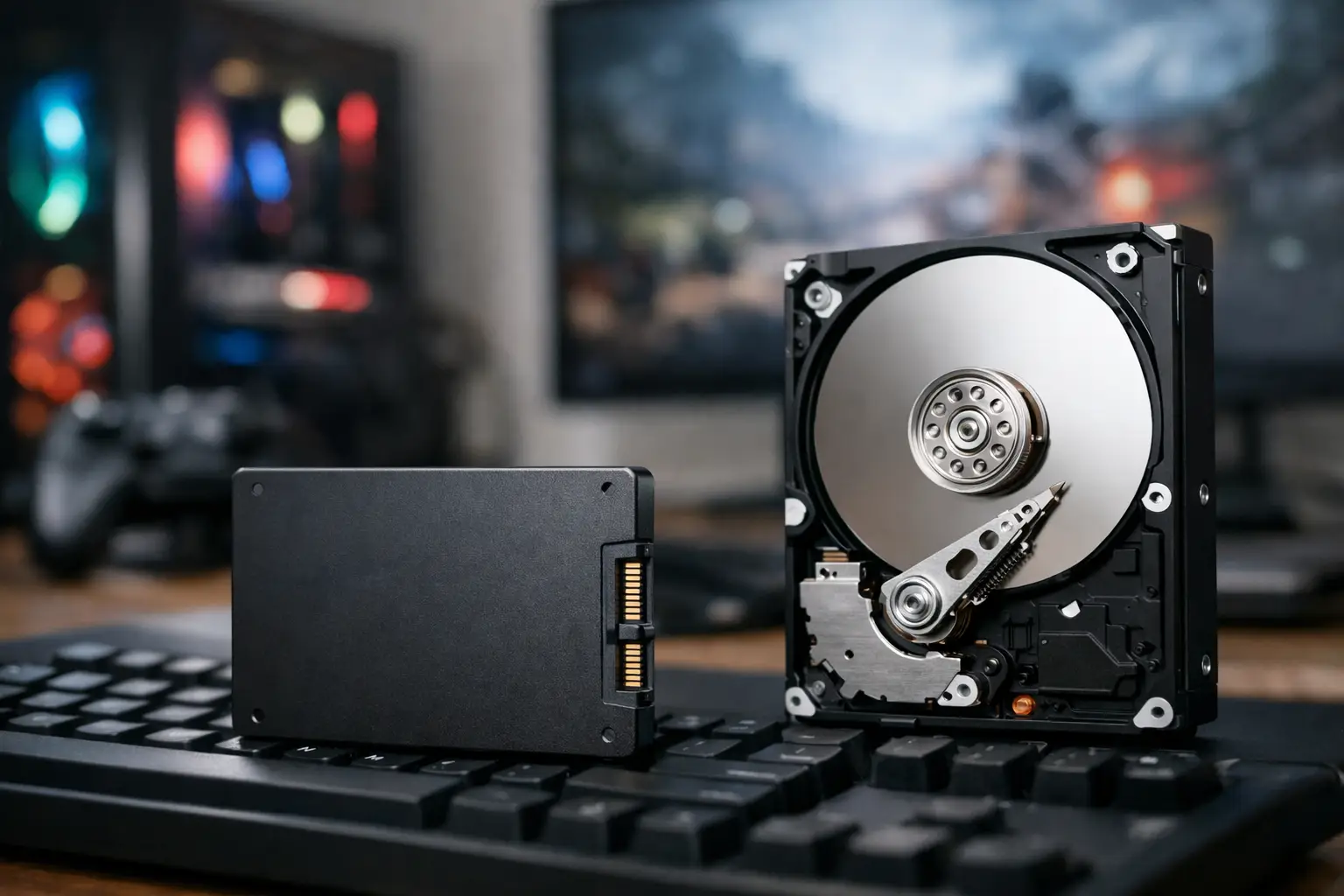
A new graphics card may define your frame rate, but storage defines how the whole PC feels between matches. This SSD HDD comparison looks beyond headline speeds to help you choose storage that suits your games, projects, budget and future upgrade plans.
SSD HDD comparison: the essential difference
An SSD, or solid-state drive, stores data on flash memory with no moving parts. An HDD, or hard disk drive, stores data on spinning magnetic platters and uses a moving read/write head. That fundamental difference explains almost every practical distinction between them.
SSDs are dramatically faster at accessing small files, launching software and loading game assets. HDDs offer far more capacity for the money. Neither is automatically the right answer in every build. The best choice depends on which files need immediate access and which simply need a dependable place to live.
For a premium gaming or performance desktop, an SSD should normally be the primary drive. It holds Windows, your most-played games and regularly used applications, keeping the system responsive from power-on to shutdown. An HDD can still be a sensible secondary drive for large libraries, archived footage, backups and files that do not benefit from maximum speed.
Speed: where an SSD changes the experience
The biggest everyday benefit of an SSD is responsiveness. Windows boots faster, programs open with less delay, and installing updates or moving files is noticeably quicker. Gaming also benefits, particularly in large open-world titles that constantly stream textures, maps and audio while you play.
A traditional SATA SSD is already much faster than a hard drive. It is limited by the SATA connection, but it remains an excellent upgrade for systems without spare M.2 slots or for buyers seeking strong value. An NVMe SSD uses the M.2 form factor in most modern desktops and communicates through PCIe, allowing considerably higher throughput and lower latency.
The difference between HDD and any good SSD is substantial. The difference between a SATA SSD and a high-end NVMe model is more dependent on your workload. For normal desktop use and many games, both feel quick. For large video transfers, professional content creation, demanding project files and frequent installs, a faster NVMe drive can save meaningful time.
Do not choose an NVMe drive solely because its box displays an enormous sequential read figure. Gaming workloads rely on a mixture of reads, writes and random access, while motherboard compatibility and available PCIe lanes also matter. A well-matched mid-range NVMe SSD is often a better use of budget than the fastest drive available.
Game loading and frame rate are not the same thing
An SSD can reduce loading screens and help prevent storage-related hitching in certain games, but it does not replace a capable GPU, processor or sufficient RAM. Once a game is loaded, average frame rate is usually governed by those other components.
Some newer titles are designed to take greater advantage of fast SSD storage. Even so, a balanced system remains the priority. There is little value in fitting a flagship SSD if doing so forces a compromise on the graphics card or memory capacity that affects the experience more directly.
Capacity and cost: where HDDs still earn their place
HDDs remain compelling because storage capacity adds up quickly. Modern games can occupy 100GB or more, while 4K footage, raw photographs, music collections and work archives can consume terabytes before you notice. A large HDD is still one of the most cost-effective ways to expand a desktop PC.
For many gaming systems, 1TB of SSD storage is a comfortable starting point. It provides room for Windows, everyday software and a considered selection of games. A 2TB SSD offers more breathing room for players who keep several large titles installed, while creators may need 2TB or more simply for active projects.
If you need extensive storage without pushing the entire budget into flash memory, use a two-drive arrangement. Place the operating system, current games and active work on the SSD. Keep older games, recordings, downloads, media and backups on a high-capacity HDD. It is a practical balance rather than a compromise for its own sake.
An HDD is less appealing as the only drive in a new performance PC. The slower boot times, longer updates and general delay are difficult to justify when even a modest SSD transforms daily use. If budget is tight, a smaller SSD for Windows and essential applications plus an HDD for capacity is usually more satisfying than relying on one large hard drive.
SSD HDD comparison for reliability and lifespan
Because SSDs have no moving mechanical parts, they are more resistant to physical shock. This is particularly useful in laptops, but it also reduces one point of failure in a desktop. HDDs contain precision-moving components and can be affected by knocks, wear and age, although a well-made drive in a properly built PC can provide years of reliable service.
Neither drive type should be treated as permanent storage. SSD flash cells have a finite write endurance, while HDDs can fail mechanically or develop bad sectors. In real use, most quality consumer SSDs have ample endurance for gaming, normal work and general home use. Heavy video editing, regular large-scale data writes or professional workloads may justify selecting a drive with stronger endurance ratings and a longer warranty.
The more important rule is backup. Keep irreplaceable files in more than one location. A second internal drive is helpful, but it is not complete protection against theft, power damage, accidental deletion or a wider system fault. For valuable work, maintain a separate backup drive and a suitable off-site copy.
Heat, noise and physical space
SSDs run silently. HDDs produce a faint spin and seek noise, which may matter if you are building a quiet desktop for late-night gaming, recording or studio work. HDDs also generate more vibration and require a 3.5-inch drive bay in most desktop cases.
M.2 NVMe SSDs mount directly onto the motherboard, keeping cable runs clean and simplifying airflow. Faster models can run warm during sustained workloads, so a motherboard M.2 heatsink is worthwhile when available. SATA SSDs need power and data cables, but their compact 2.5-inch format makes them easy to install.
Choosing the right drive for your build
Start with how you use the PC, not with the most impressive specification. A competitive gamer who keeps a small rotation of titles installed may be well served by a quality 1TB NVMe SSD. A player with a huge Steam library might choose a 2TB SSD or add an HDD for less frequently played games.
For creators and professionals, separate active and archive storage can make more sense. Use a fast NVMe SSD for current editing projects, design assets or development environments, then move completed work to a larger HDD or external backup. This preserves high-speed space for the files that benefit from it.
Check the motherboard before finalising the specification. Most current boards support one or more M.2 NVMe drives, but the exact generation, available slots and lane sharing can vary. Some M.2 configurations may disable a SATA port or share bandwidth with another expansion slot. These details are manageable, but they are worth planning before you buy rather than discovering after the build is complete.
It is also sensible to leave spare capacity. SSD performance can decline when a drive is nearly full, and Windows, game updates and creative applications all need working room. Aim not to run your primary SSD at its limit. Choosing slightly more capacity now can be more cost-effective than replacing a cramped drive soon after purchase.
A balanced storage plan is usually the best plan
For most premium gaming PCs, a 1TB or 2TB NVMe SSD is the strongest foundation. It gives the operating system and favourite games the speed they need without overcomplicating the build. Add a large HDD only when your library, media collection or backup requirements justify it.
The ideal storage setup is not the one with the highest benchmark result or the largest advertised capacity. It is the one that keeps your PC fast where you feel it, leaves room to grow and protects the files you cannot replace. When configuring a tailored system, make storage part of the overall build plan, alongside graphics performance, cooling, memory and the way you expect to use the machine over the next few years.