Which Parts Affect FPS in Your Gaming PC?
Which parts affect FPS most? Learn how the GPU, CPU, RAM, storage, cooling and settings shape gaming performance and where to spend your budget wisely.
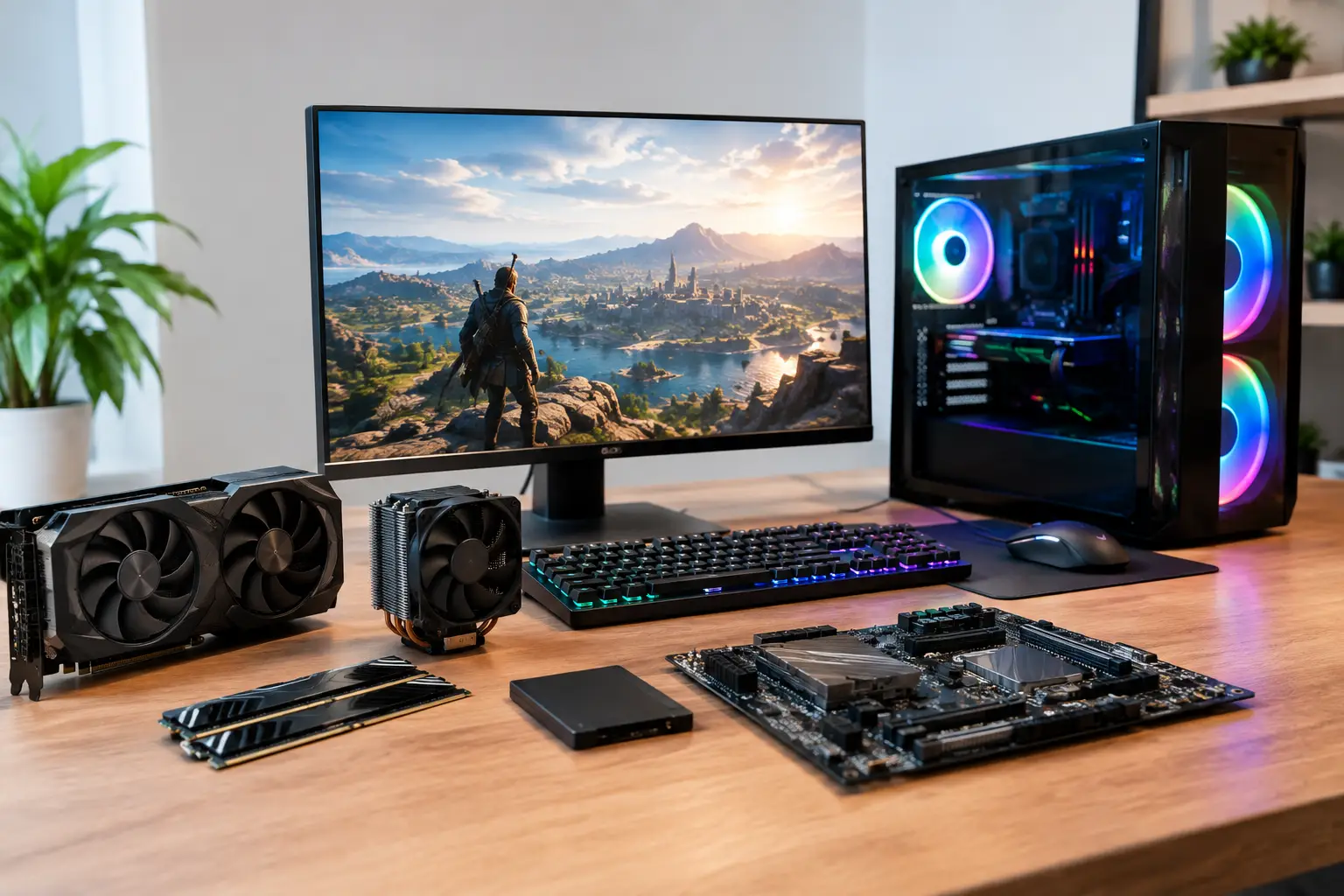
A new graphics card can transform a gaming PC, but it is not a guarantee of higher frame rates in every game. Which parts affect FPS depends on the game you play, the resolution you use and whether another component is holding the system back. A balanced specification matters more than buying the most expensive part in isolation.
For most gaming systems, the graphics card leads the conversation. Yet the processor, memory, cooling, storage and even your display settings all influence what you see on screen. Knowing where each part fits helps you invest in performance that suits the games you actually play.
Which Parts Affect FPS Most?
The graphics card: the primary FPS component
The GPU is usually the most important component for FPS, particularly at 1440p and 4K. It renders the game world, including lighting, shadows, textures, effects and the millions of pixels sent to your monitor every second. More demanding graphical settings place more work on the GPU, which is why reducing ray tracing, shadow quality or resolution can lift frame rates substantially.
If your aim is higher settings at a higher resolution, allocate the largest part of the gaming budget to the graphics card. VRAM capacity also matters. Modern games with high-resolution textures, ray tracing and larger environments can use considerable video memory. When a card runs short of VRAM, stuttering and inconsistent frame times can become more noticeable, even if its average FPS still appears acceptable.
The right GPU is not simply the fastest one available. A competitive player targeting 1080p and 240Hz may value consistently high frame rates over ultra-quality visual presets. Someone playing cinematic single-player games on a 4K display may prefer stronger raster performance, more VRAM and effective upscaling support.
The processor: crucial for high-refresh gaming
The CPU prepares game logic, physics, AI, draw calls and background tasks before the graphics card can render each frame. If it cannot keep pace, the GPU waits for work. This is known as a CPU bottleneck.
CPU performance has its greatest effect at lower resolutions and very high refresh rates. At 1080p, a powerful graphics card can often render frames quickly enough that processor speed becomes the limit. Strategy games, simulation titles, esports games and large multiplayer matches can be especially processor-heavy because they handle many players, objects or calculations at once.
Core count matters, but it is only one part of the picture. Modern games benefit from capable multi-core CPUs, while strong per-core performance and cache can make a significant difference to frame-rate consistency. For a premium gaming PC, pairing a high-end GPU with an entry-level processor may reduce the performance you expected from that graphics card.
RAM: capacity, speed and configuration
System memory does not usually increase FPS as dramatically as changing the GPU or CPU, but insufficient or poorly configured RAM can restrict a capable build. For current gaming, 16GB remains workable for many titles, while 32GB gives more headroom for demanding games, background applications, browser tabs, voice chat and game capture.
Speed and latency can influence CPU-limited performance, especially on certain platforms and in high-refresh gaming. The gains vary by game, so memory should be chosen as part of the wider platform rather than as a standalone upgrade promising a fixed FPS increase.
Configuration is equally important. Two matched memory modules running in dual-channel mode provide more bandwidth than a single module of the same total capacity. A single 16GB stick may leave performance on the table compared with a matched 2 x 8GB kit. Correctly enabling the memory profile in the system firmware also ensures the RAM operates at its intended speed.
Storage: smoother loading, not usually higher average FPS
An SSD will not normally turn 70 FPS into 120 FPS. Its main advantages are faster boot times, shorter game loading screens and improved responsiveness when games stream assets during play. Compared with a hard drive, a modern NVMe SSD can also reduce texture pop-in or pauses in games built around rapid asset streaming.
Storage is therefore important for the feel of a modern gaming system, but it is rarely the first component to upgrade when average FPS is the sole goal. Prioritise sufficient fast SSD capacity for your main games, then direct the remaining budget towards the GPU and CPU balance.
Other Parts That Affect FPS Indirectly
Cooling and power delivery protect sustained performance
Gaming components adjust their clock speeds according to temperature, power limits and workload. If a CPU or GPU becomes too hot, it can reduce clock speeds to protect itself. That can lower FPS over a longer gaming session, even if short benchmark results look strong.
A well-designed case, suitable CPU cooler and considered airflow allow premium components to sustain performance more reliably. More fans are not automatically better if they are poorly positioned or restricted by the case layout. The objective is a clear route for cool air to enter and warm air to leave, with components installed and configured correctly.
The power supply does not create extra frames directly, but it is fundamental to stable operation. A quality unit with suitable wattage and the correct connectors supports the system under demanding loads and leaves sensible room for component upgrades. It is not a part to cut corners on in a high-performance build.
The motherboard affects compatibility and tuning
Motherboards have limited direct influence on gaming FPS at standard settings. Their importance lies in supporting the right processor, memory speeds, storage, expansion and power delivery for the build. A poor match can limit memory configuration, restrict future upgrades or make it harder for a high-performance CPU to operate as intended.
Choose the motherboard for feature set, build quality and compatibility rather than expecting it to deliver major frame-rate gains by itself. For most players, budget is better spent on the graphics card, processor, memory capacity and cooling.
Your monitor and settings shape the result you experience
FPS is generated by the PC, but the monitor determines how many of those frames you can see. A 60Hz display refreshes up to 60 times per second, so it cannot display 144 unique frames per second in the way a 144Hz monitor can. Higher-refresh displays make motion appear clearer and input feel more immediate when the system can provide matching performance.
Game settings are just as important. Resolution is one of the largest performance levers: moving from 1080p to 1440p increases the number of pixels rendered substantially, while 4K demands far more again. Upscaling technologies can improve performance by rendering internally at a lower resolution and reconstructing the final image. Results depend on the game, quality mode and your own tolerance for image trade-offs.
Ray tracing can add convincing reflections, shadows and lighting, but it remains demanding. It may be worth enabling in slower-paced games where visual quality is the priority, while competitive games often benefit more from settings that favour higher, steadier frame rates.
How to Identify the Real FPS Bottleneck
Before upgrading, look at how the system behaves in the games you play. If GPU usage remains close to maximum while playing and lowering graphical settings raises FPS, the graphics card is probably the limiting factor. If GPU usage drops well below maximum but one or more CPU cores are heavily loaded, the processor or memory configuration may be holding performance back.
Do not judge a build by average FPS alone. Frame-time consistency matters because sharp dips can feel worse than a slightly lower but stable average. Watch for stutter when entering new areas, during busy multiplayer moments or after extended sessions. These symptoms can point to limited VRAM, insufficient RAM, storage streaming issues, overheating or software running in the background.
It is also worth checking the basics before assuming hardware needs replacing. Update graphics drivers, confirm the monitor is set to its intended refresh rate, enable the correct memory profile and ensure the game is using the dedicated graphics card rather than integrated graphics. These checks can resolve performance problems without a component change.
Building for the FPS You Want
A sensible gaming PC starts with a target. Specify the games you play, your monitor resolution and refresh rate, the settings you prefer and whether you also stream, edit video or use demanding creative applications. That brief makes the component balance much clearer.
For 1080p competitive gaming, a capable CPU, responsive memory configuration and a graphics card suited to high frame rates are the priority. For 1440p gaming, GPU performance becomes increasingly decisive, although the processor must still be strong enough to avoid restricting it. At 4K, the graphics card and its VRAM take centre stage, while sensible cooling and a quality power supply help the system sustain demanding workloads.
A carefully selected system should not merely produce an impressive benchmark number. It should deliver the visual quality, responsiveness and upgrade potential you expect from it. That is why an expertly handcrafted, fully tested PC tailored to your games and display is often a better investment than chasing one headline component.