Workstation Computer Buying Guide for 2026
Our workstation computer buying guide explains how to choose CPU, GPU, memory, storage and cooling for dependable performance tailored to your workload.
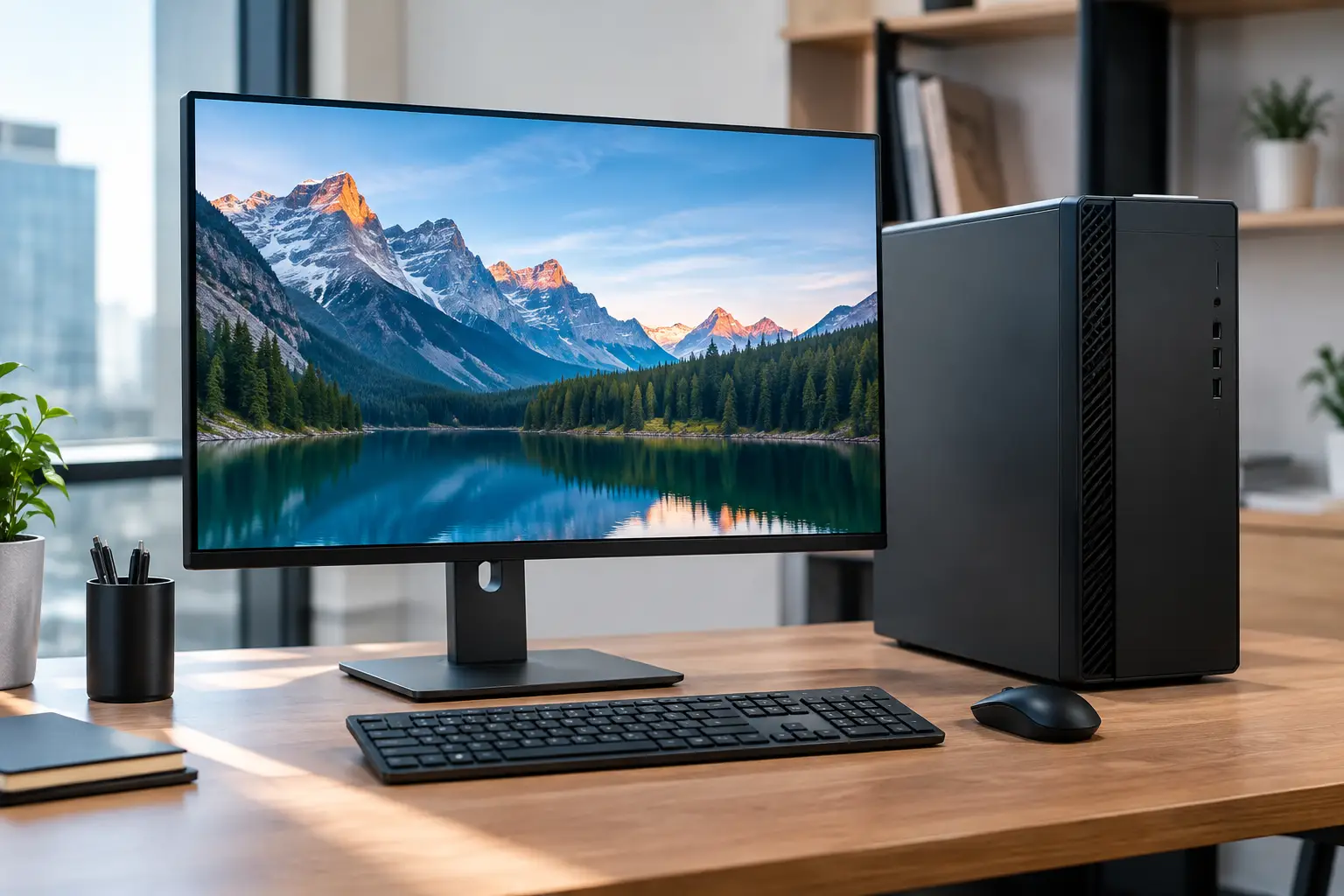
A workstation should make demanding work feel routine. Whether you are rendering architectural scenes, editing multi-camera footage, compiling code, producing music or running complex engineering software, the right system saves time at every stage of the day. This workstation computer buying guide focuses on the components that genuinely affect your workload, so you can invest in performance where it counts rather than paying for specifications you will never use.
A gaming PC and a workstation can share many of the same high-quality components, but their priorities are not identical. Gaming performance often centres on graphics output at a chosen resolution. A workstation must also handle long sustained loads, large files, specialist applications and dependable multitasking. The best specification is therefore not the most expensive one. It is the one tailored to the software, projects and upgrade plans you actually have.
Start With Your Workload, Not a Parts List
Before choosing a processor or graphics card, identify the applications you use most and how they use hardware. This matters because different professional workloads create very different bottlenecks.
A 3D artist using Blender, Cinema 4D or Autodesk software may benefit heavily from a powerful GPU for viewport work and GPU rendering, alongside a multi-core processor for simulation, modelling and CPU-based renders. A video editor working in Premiere Pro or DaVinci Resolve may need fast storage, generous memory and a graphics card with capable video encoding support. For CAD, design and certain engineering packages, high single-core processor speed can matter more than simply adding more cores.
Software certification can also affect the decision. Some specialist CAD, medical, scientific and enterprise applications are designed around professional graphics cards and certified drivers. Consumer graphics cards offer excellent value for many creative and performance-focused users, but a professional GPU may be the safer choice where application support, error handling or certified compatibility is required.
Consider what happens on your busiest day rather than your average one. A system that handles a small project comfortably may become restrictive when timelines contain high-resolution media, assemblies grow, virtual machines multiply or client deadlines bring several applications together.
Choosing a Processor for Workstation Performance
The processor is the central decision in most workstation builds. Its role extends beyond headline core counts: it influences application responsiveness, rendering speed, multitasking capacity and the platform features available to the rest of the system.
For office work, web-based platforms, light coding and general productivity, a modern mid-range processor is usually more than sufficient. Spending the entire budget on a high-end CPU will not improve a workflow that is limited by internet services, memory capacity or a slow storage drive.
For content creation, software development and heavy multitasking, look for a processor with a healthy balance of fast cores and strong multi-threaded performance. More cores can reduce render and export times, but the benefit depends on whether your software can use them effectively. A processor with fewer, faster cores may feel quicker in modelling, design and day-to-day desktop use than a higher-core alternative aimed solely at long rendering workloads.
Threadripper-class and workstation-focused platforms have a place when your work requires very high core counts, additional PCIe lanes, vast memory capacity or multiple expansion cards. They are not automatically the right answer for every professional. They cost more, consume more power and may offer less value for workloads that rely primarily on GPU acceleration or single-thread performance.
Select a GPU That Matches Your Applications
A graphics card is essential for 3D work, GPU rendering, accelerated video editing and AI-assisted creative tools. It can also be the largest single cost in a workstation, so it deserves a clear purpose.
Start with GPU memory, commonly called VRAM. Large textures, detailed 3D scenes, high-resolution footage and local AI models can consume VRAM quickly. When a project exceeds the available memory, performance can drop sharply or the task may fail altogether. More VRAM is often more useful for professional work than a small increase in gaming frame rate.
Next, check which rendering engines and effects your software supports. Some applications strongly favour particular GPU architectures or APIs; others are more processor-led. If you edit video, consider the codecs you work with and the GPU's hardware encoding and decoding capabilities. These features can make playback and exports noticeably smoother, particularly with modern high-resolution formats.
For users who split time between professional workloads and gaming, a high-performance consumer GPU can be an excellent choice. It delivers strong creative acceleration and impressive gaming results, provided your software does not require professional driver certification. This is where a tailored build is useful: you do not need to compromise on the parts that matter to either side of your use.
Memory and Storage: The Parts That Prevent Friction
Insufficient RAM is one of the most common causes of a workstation feeling slower than expected. When memory fills up, the system starts relying more heavily on storage as temporary memory, which is far slower and can disrupt an otherwise capable specification.
For lighter professional work, 32GB is a sensible starting point. For 4K editing, large Photoshop files, complex design work, virtual machines or regular multi-application use, 64GB is often a more comfortable target. Users handling advanced 3D scenes, simulation, extensive datasets or several virtual machines may need 128GB or more. The correct capacity depends on the size and number of files open at once, not simply the name of the application.
Storage should be planned in tiers. A fast NVMe SSD for Windows, applications and active projects gives the system its everyday responsiveness. A separate high-speed drive for working files, cache and scratch data can help video editing and creative software maintain performance under load. Larger SSDs or hard drives are then useful for archives, completed projects and backups.
Do not treat backups as an optional extra. A workstation may be built for speed, but its value lies in the work stored on it. Keep important files in more than one location, ideally with one copy separate from the computer itself. Fast local storage improves productivity; a proper backup protects it.
Cooling, Power and Case Choice Matter
Long renders and exports place sustained demand on a workstation. That is different from short bursts of activity, and it makes cooling a performance consideration rather than a cosmetic one. A processor or graphics card that reaches thermal limits may reduce its speed to control temperatures, extending the very tasks you bought the system to accelerate.
Choose a case with clear airflow, quality fans and enough space for the cooling hardware your selected components need. Air cooling can be extremely effective, quiet and straightforward to maintain. Liquid cooling can offer excellent thermal capacity and may be useful for high-wattage processors, but it should be selected for a genuine requirement rather than appearance alone.
The power supply should have sufficient capacity for the full specification, with allowance for sustained loads, transient GPU power demands and reasonable future upgrades. A premium, correctly sized unit contributes to stable operation and protects a substantial investment in other components. It is not the place to cut corners.
Noise is also worth considering. A workstation in a shared room, studio or home office should not become intrusive every time a render begins. Fan selection, cooler design, case airflow and sensible power settings all influence acoustic performance.
Plan for Displays, Connectivity and Future Expansion
A powerful workstation can still feel limiting if the surrounding setup is overlooked. Colour-critical creative work may justify an accurate, calibrated display. Spreadsheet-heavy, coding and editing workflows often benefit more from screen space than from another modest step up in processor performance. Check resolution, panel type, refresh rate and connection options against how you work.
Connectivity deserves the same attention. Think about the external drives, card readers, audio interfaces, networking equipment and peripherals you use every week. Front-panel USB ports are convenient, but the rear I/O and motherboard expansion options determine what the system can support over time. Fast wired networking can be valuable when projects live on a NAS or shared studio storage.
Upgrade potential is useful, but it should be realistic. Buying a motherboard solely because it has expansion you may never use can waste budget. Prioritise the upgrades you can genuinely foresee: another SSD, more memory, a more powerful GPU or additional capture and networking hardware.
A Better Way to Set Your Budget
Set a total budget, then protect the components that directly shorten your workflow. For a GPU-rendering workstation, allocate more towards graphics and VRAM. For CPU rendering, code compilation or simulation, prioritise the processor and cooling. For large media projects, reserve enough for RAM and fast project storage.
Avoid balancing a workstation by selecting every component from the same price tier. An expensive graphics card paired with too little RAM can leave editing and 3D work constrained. Equally, an extreme processor offers little return if the projects are GPU-bound and storage is slow. Performance is the result of the whole system working together.
A professionally assembled system also adds value beyond the parts list. Compatibility checks, careful cable management, thermal configuration and full testing help ensure the machine arrives ready for real work. At CraftCore, each custom system is expertly handcrafted and fully tested around the buyer's intended use, whether that means demanding creative production, high-performance gaming or both.
The right workstation should give you headroom without making you pay for a specification built for somebody else's workload. Choose for the projects you want to complete faster, leave sensible room for the work ahead, and let every component earn its place in the build.